Chapter 7: Sharing Outfits with Links
Ensemble lets you share your wardrobe with other people using shareable links. A link gives a visitor access to a dedicated page showing your outfits, without them needing an Ensemble account or a login of any kind. Depending on how you configure the link, visitors can browse your outfits, and optionally wear or remove them on your avatar.
This chapter covers how to create and manage links, what the two permission settings control, what the shared view looks like to a visitor, and the practical limits that apply.
7.1 What Is a Shared Link?
A shared link is a URL of the form:
The link_uuid is a unique 32-character code generated by Ensemble when you create the link. Anyone who has the URL can visit the page — no account, no login, no password required. You control what they can see and do through two settings: Scope and Permissions.
Links are independent of one another. You can have up to 20 links active at any time, each with different settings. For example, you might have one link for a friend who can wear your outfits, and a separate view-only link you share more publicly.
Privacy note: Anyone with the link URL can access the shared view. Treat a Wear / Remove link like a key — share it only with people you trust to dress or undress your avatar. If a link has been shared too widely, delete it and create a new one.
7.2 Creating a Link
To create a new shared link:
- Click the hamburger menu (≡) in the top-right of the web panel.
- Go to Tools → Create Link. The Create Link form opens directly.
- Fill in the fields (see Section 7.3) and click Create link.
- The link appears in the Manage Links list. Copy the URL and share it.
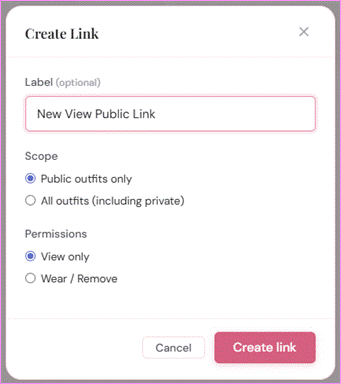
The Create Link modal showing the Label field, Scope radio buttons (Public outfits only / All outfits), and Permissions radio buttons (View only / Wear / Remove)
You can also open the form via Tools → Manage Links and then clicking + Create link from within the manage view.
7.3 Link Settings
Each link has three settings: an optional label, a scope, and a permission level.
Label
The Label field is an optional name for the link, up to 80 characters. It is shown in the Manage Links list to help you identify which link is which. It is also used as the page title in the visitor’s browser tab — if set, the tab reads “Your Label — Ensemble”; if left blank, it reads “Your Username’s Outfits — Ensemble”.
Labels have no effect on the link’s behaviour or what visitors can do. They are for your own organisation.
Scope
Scope controls which of your outfits are visible on the shared page:
- Public outfits only — only outfits whose Access setting is “Public” are shown. Outfits you have marked as “Private” (Chapter 3, Section 3.9) are hidden entirely. This is the default for new links.
- All outfits (including private) — all outfits are shown, including those marked Private. Use this only for links shared with trusted individuals.
Tip: Most links should use “Public outfits only”. The All outfits option exists for situations where you want to give a specific person — such as a partner or dresser — access to your complete wardrobe including outfits you keep off your public link.
Permissions
Permissions controls what the visitor can do on the shared page:
- View only — the visitor can see all the outfits in scope (names, images, tags) but the Wear and Remove buttons are not shown. The HUD status badge is also hidden. This is the default for new links.
- Wear / Remove — the visitor sees Wear and Remove buttons on each outfit card and can click them to dress or undress your avatar, provided your HUD is online. The HUD status badge is shown so the visitor can tell whether commands will reach you.
7.4 Permissions Summary
The table below summarises what each link type gives a visitor access to.
| View Only link | Wear / Remove link | |
| See outfit names and images | ✓ Yes | ✓ Yes |
| Filter by tag | ✓ Yes | ✓ Yes |
| See HUD online/offline status | ✕ No | ✓ Yes |
| Click Wear / Remove buttons | ✕ No | ✓ Yes (if HUD online) |
| See private outfits | Only if Scope = All outfits | Only if Scope = All outfits |
| Edit outfit settings | ✕ No | ✕ No |
| Requires login | ✕ No — link is public | ✕ No — link is public |
Note that visitors can never alter any outfit settings, upload images, create or delete outfits, or perform any action that modifies your wardrobe data. The shared view is strictly read-and-optionally-wear.
7.5 The Shared View
When a visitor opens a shared link, they see a wardrobe page that looks similar to your own dashboard — the same Ensemble header, outfit cards with names and images, and tag filtering. Key differences from your own view:
- There is no login prompt, no settings menu, and no side navigation.
- The page header shows your username (“Username’s outfits”) and, for Wear / Remove links, the HUD status badge.
- On View Only links, outfit cards show no Wear or Remove buttons.
- On Wear / Remove links, outfit cards show Wear and Remove buttons. If your HUD is Offline, the buttons are greyed out and non-clickable, matching the behaviour of your own dashboard.
- Locked outfits show a lock indicator; their Wear and Remove buttons are also disabled even if the HUD is online.
- Outfits with the space-in-folder-name warning still show that warning to the visitor.
The shared view page as seen by a visitor with a Wear / Remove link, showing outfit cards with Wear and Remove buttons and the HUD status badge in the header
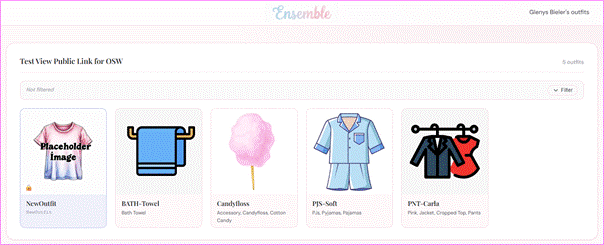
The shared view page as seen by a visitor with a View Only link, showing outfit cards with no action buttons
The shared view uses the same default Ensemble theme as your panel. If you are running a self-hosted installation with a custom theme, the shared view will reflect that theme.
Tag filtering on the shared view
If your outfits have tags, the tag filter bar appears on the shared view page exactly as it does on your own dashboard. Visitors can filter outfits by tag to find what they are looking for. The filter bar only shows tags from the outfits that are in scope for the link — Private outfit tags are not visible on a Public-scope link even if those outfits are otherwise hidden.
7.6 How Wear and Remove Work via a Link
When a visitor clicks Wear on a shared Wear / Remove link, the process is exactly the same as when you click Wear from your own dashboard — the same full dressing sequence runs, including base outfits, additional items, remove before wearing, and all the scope and method settings:
- The outfit’s full wear sequence (base outfits → main outfit → additional items) is built and sent to your HUD.
- Each step uses that outfit’s own wear mode and removal points settings.
- The HUD must be online and reachable. If the HUD is Offline (last check-in more than 10 minutes ago), the Wear button is greyed out and clicking it has no effect.
- If the outfit is locked, the button is disabled regardless of HUD status.
Remove via a link works identically — the outfit’s folder is detached from your avatar, and if the outfit has Wear After Remove outfits configured, those are worn in sequence afterwards.
Note: There is no way for a visitor to wear or remove an outfit on a View Only link, even by manipulating the URL or the page. The permission is enforced server-side: the link_wear and link_remove API endpoints check that the link has can_wear = 1 before doing anything. A View Only link token will always receive a “forbidden” response from those endpoints.
7.7 Managing Links
All your active links are listed in the Manage Links view, accessible from the side menu under Tools → Manage Links.
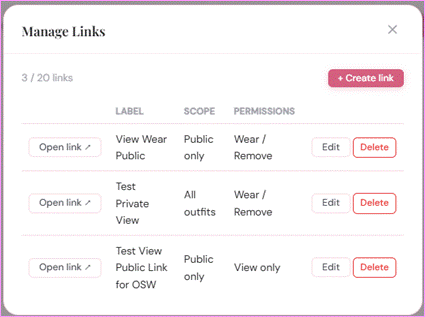
The Manage Links modal showing a list of links with their open link button, label, scope, permission, and edit/delete buttons
For each link the list shows:
- The “Open Link” button (right click to copy URL)
- The Label
- The scope — “Public” or “All”.
- The permission — “View” or “Wear”.
- Buttons to Edit, Delete
The count of active links (e.g., “3 / 20 links”) is shown at the top of the list. When you reach the 20-link limit, the + Create link button is replaced with a message indicating the limit has been reached. Delete an old or unused link to make room for a new one.
Editing a link
Click Edit next to a link to change its label, scope, or permission. The link URL itself does not change — anyone who already has the URL will continue to be able to use the link with the updated settings.
Deleting a link
Click Delete next to a link to remove it permanently. The link UUID is invalidated immediately — anyone who visits the old URL will see a “Link not found” page. This is the correct way to revoke access: delete the link and, if needed, create a new one with a fresh URL to share with the people you still want to have access.
Tip: If you want to change who has a Wear / Remove link without disrupting a View Only link, delete only the Wear / Remove link and create a new one. The View Only link is unaffected and its URL remains valid.
Copying the link URL
Right click the “Open Link” button to copy the full shared link URL to your clipboard, ready to paste into a chat message, notecard, or web page.
7.8 Link Limits
Each Ensemble account can have a maximum of 20 active links at any time. This limit is set in config.php on the server (the LINKS_MAX constant) and applies per user account. On the hosted instance at ensemble.virtualportal.space this limit is 20 and cannot be changed by users.
If you are running a self-hosted installation and need more than 20 links, a server administrator can increase the LINKS_MAX constant in config.php. See Chapter 10 for details on self-hosting configuration.
7.9 Security Considerations
Shared links are public by URL — anyone who obtains the URL can use it. Ensemble does not provide password-protected links or expiry dates. Bear the following in mind:
- Treat Wear / Remove link URLs like passwords. Share them only with people you trust to dress your avatar. If a link has been shared more widely than intended, delete it and issue a new URL to the people who should still have access.
- View Only links are lower risk but still expose your wardrobe to whoever has the URL. If you include private outfits in a View Only link, those outfits’ names and images become visible to anyone who finds the URL.
- Deleting a link revokes access instantly. There is no grace period. The moment the link is deleted, the URL stops working.
- Locked outfits cannot be worn via a link. Locking an outfit is an effective way to temporarily prevent a visitor from wearing it without deleting and recreating the link.
- Visitors cannot modify your data. The shared view is read-and-wear only. No outfit settings, images, paths, or account details can be changed via a shared link, regardless of the permission level.
The next chapter covers Account Settings — managing your password, theme, and other account-level preferences in the web panel.