

SVPortal allows end users to log into the system with their in-world first and last name and password. You can see your profile, make you profile public if you want, and give the link to others. If your profile is public then anyone can go to the public profile page and search for you and view your profile (even those without accounts). You can see your friends list and open their profiles (you can see friends profiles even if they are not public).
When looking at a friend’s profile, if neither of you are partnered you will see an option under their name to offer partnership. If you do this – they will get a notification in their portal when they next log in and can accept or decline. If you are partnered you can disolve that partnership by clicking on the button under your name to disolve. Your partner will get a notification that your partnership with them has been disolved.
You can go to your account page and check your status and change your email address, and you can also change your password (this changes your in-world password as well as the portal – they are always linked).
If you have any estate permissions (estate owner/manager) you will also see a “My Estates” option in the menu (hamburger menu – top left) to manage the estate. Depending on if you are manager or owner you will have different options, but these include:
- Adding/removing estate managers
- Restarting a region in the estate
- Changing the region information (basically a mini-webpage for your region)
- Starting rolling restarts on all regions in the estate
- Checking restart status of regions in the estate
- Performing an OAR backup of a region, and downloading that OAR
- Uploading an OAR (maximum of one upload at a time)
- Requesting an OAR restore of an uploaded – or previous backup OAR
Hopefully this is useful for end users.
PLEASE NOTE: Most of this functionality is reliant on a certain opensim options (such as single region per simulator) by your grid owner. If your grid owner is not running their grid with certain options, then a parts of this system (mostly region management) will just not work. However, the basic profile, friends list, public profiles, theme selection, email address change, password change will always work as these are database only.
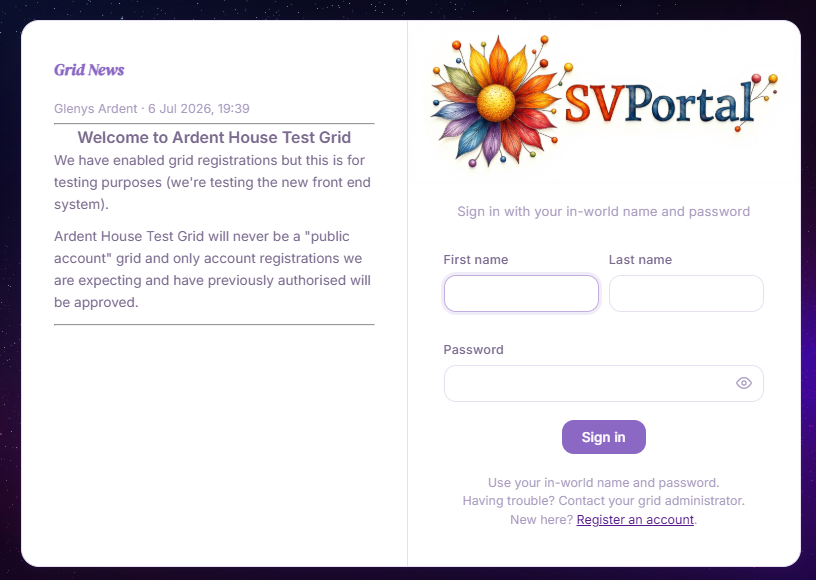
SVPortal Login – use your “in world” name and password.
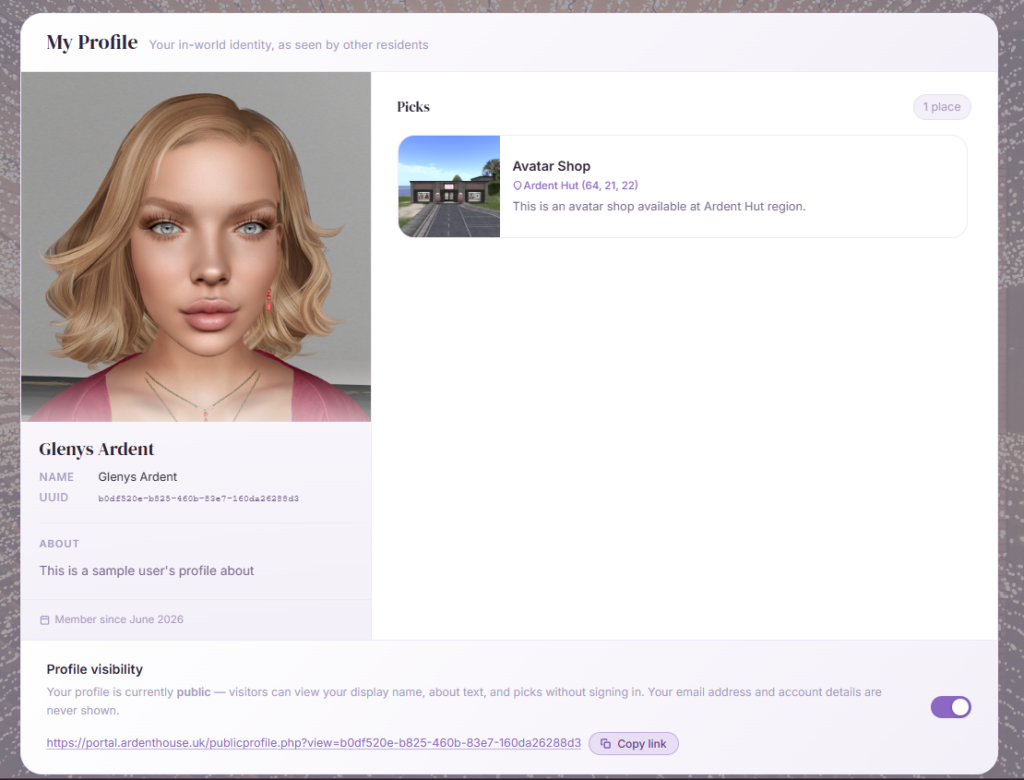
Your profile – using your in world profile pic, about and any picks you have. This is the default view after logging on.
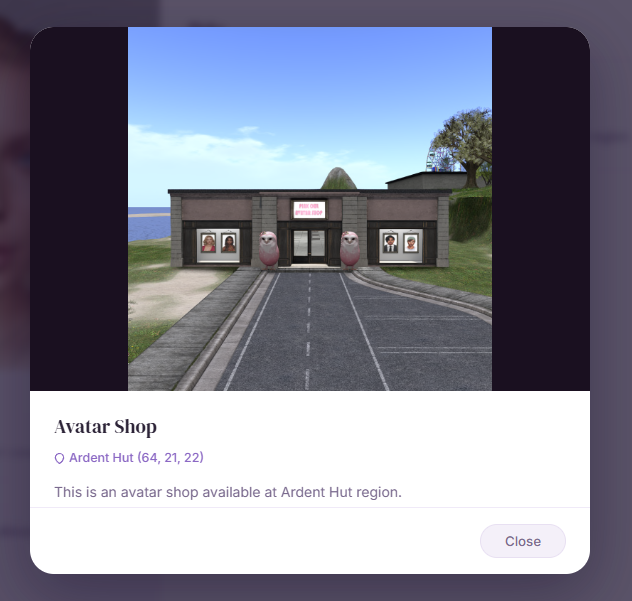
You can click on a profile pick to have it enlarged.
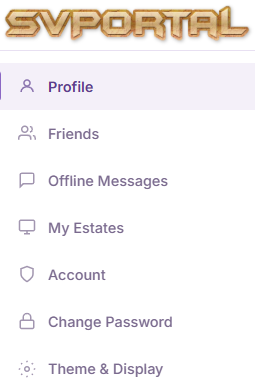
Using the “Hamburger” menu at the top left of the screen will pull out the menu drawer. This is the standard users menu.
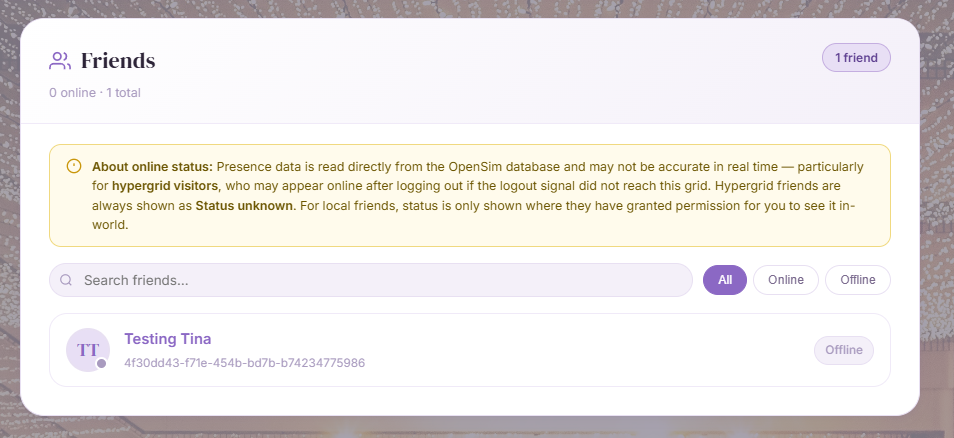
SVPortal Friends list, showing all your in world friends.
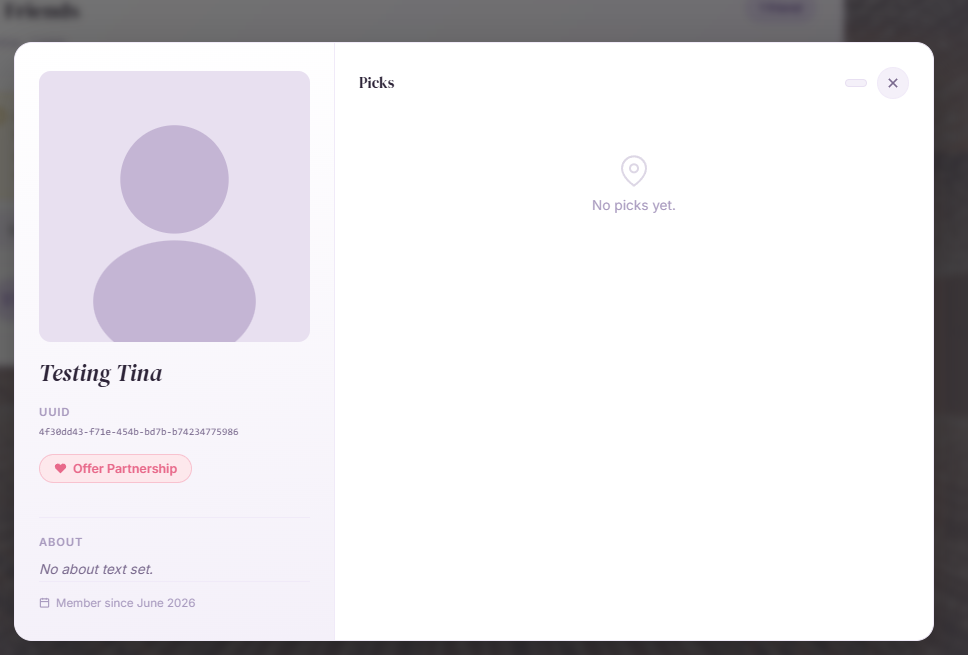
Clicking on a friend opens up their profile along with any picks. This friend seems like they haven’t created their profile yet! Note: you can “offer partnership” if you and your friend are BOTH not partnered. If you do this – your friend will get a notification on the portal that you have offered partnership. They can accept or decline. If they accept – you will be partnered and it will show in world.
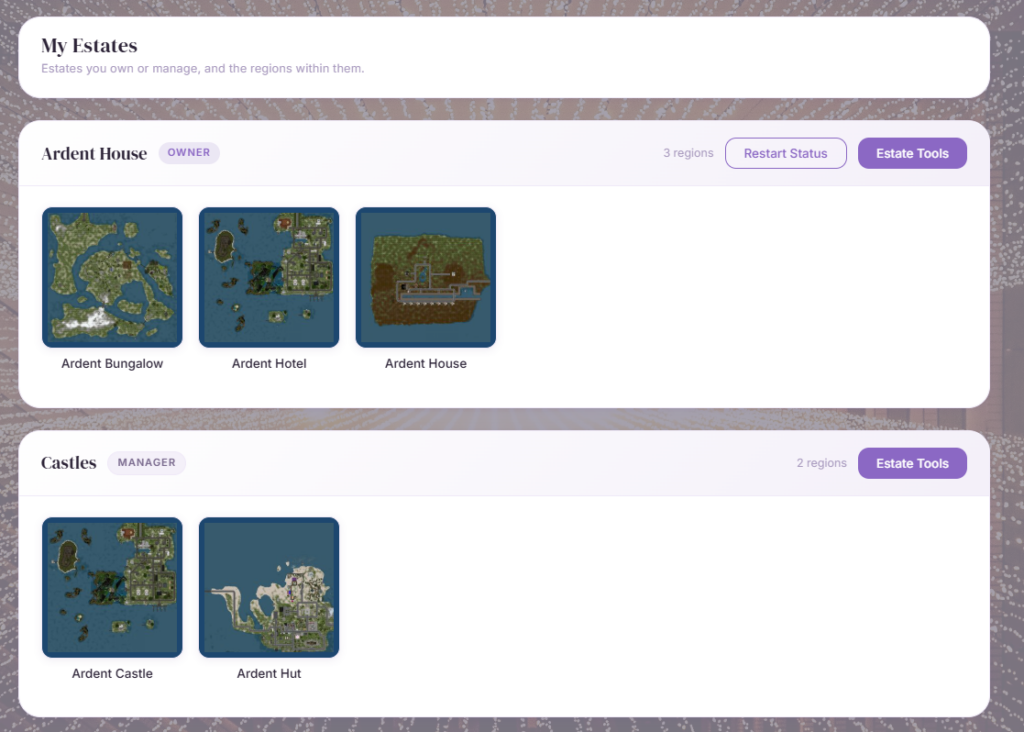
If you have an estate you own or manage – you will see the “My Estates” option on the menu. Using this option you are taken to the “My Estate” management panel.
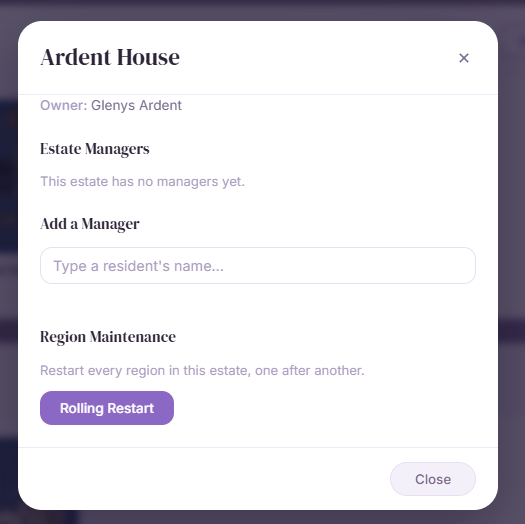
Estate Tools allows you to add/remove estate managers or perform “Rolling Restarts” on all the regions in your estate.
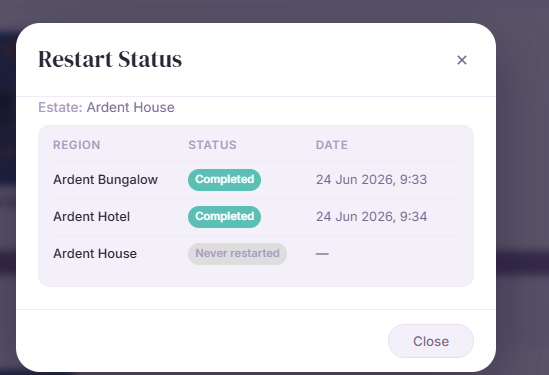
Restart Status lists the most recent restart status of each region in the estate
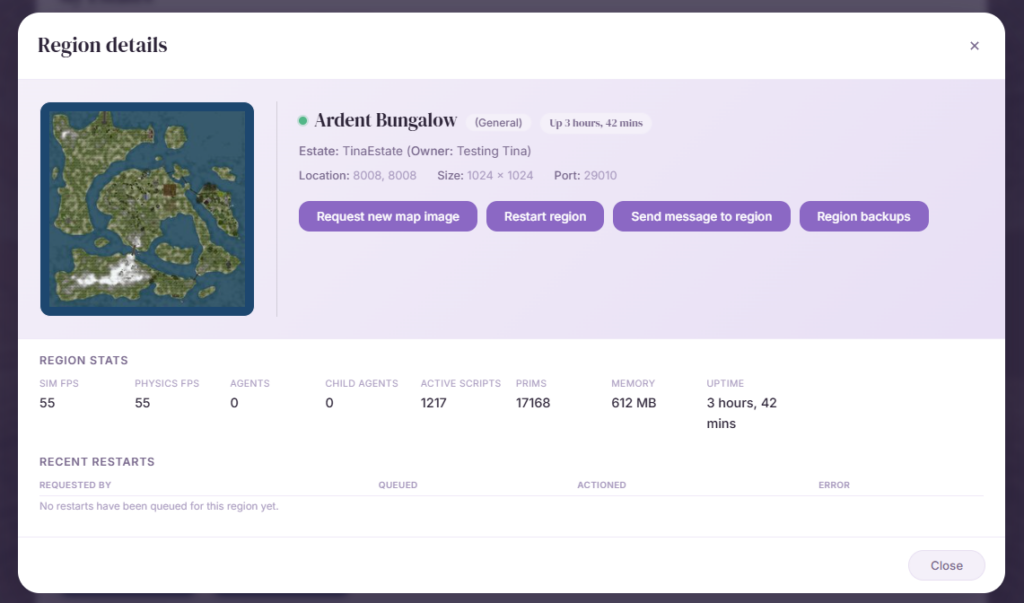
Clicking on a region in the estates view will bring up the region’s control panel. Estate managers, Estate owners, and Grid Staff will see slightly different options.
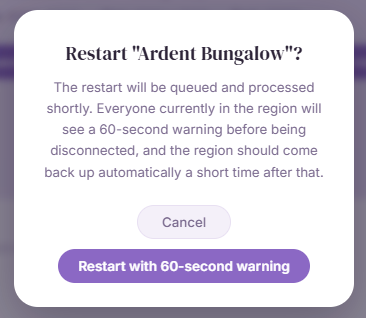
From here you can perform a region restart. The restart will be queued and processed next time the cron scheduler fires (default 1 min – but this is down to grid owner to set) it will send a 60 seconds warning to those on the region then perform a restart. Recent restarts will be shown in the lower section of the region panel.
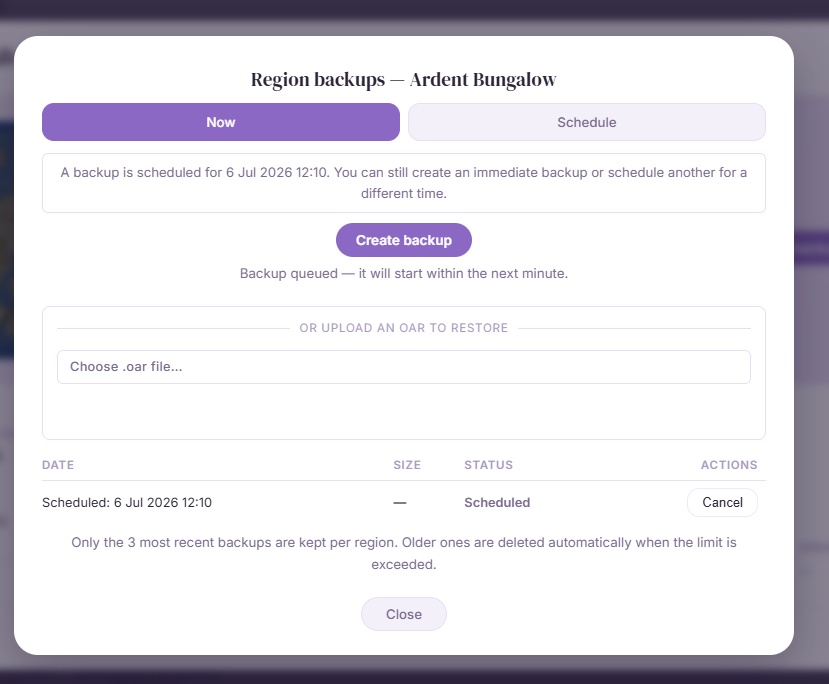
Estate owners can perform backups of their regions.
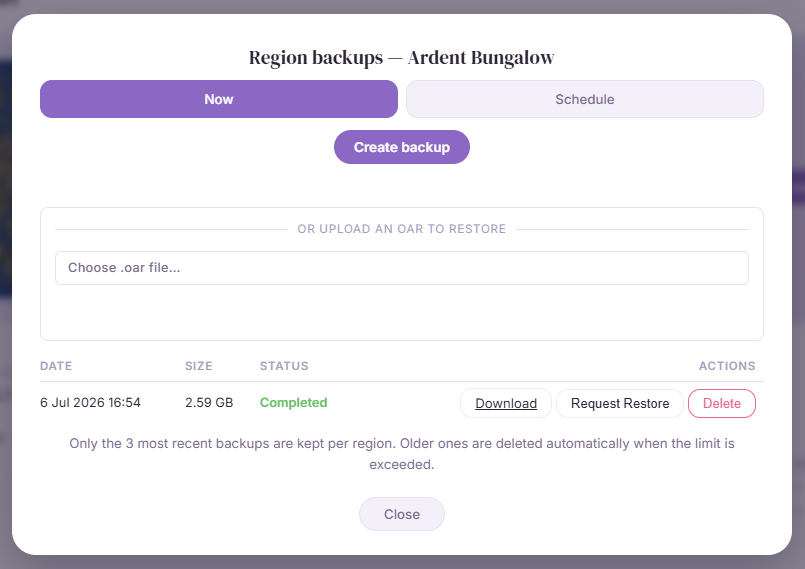
Once completed – you can download or delete your backup. You can also request a restore. The system does not support end users restoring their own OARs, a request has to be made for an admin to approve the restore. If approved this may be scheduled for an optimum time to reduce lag.
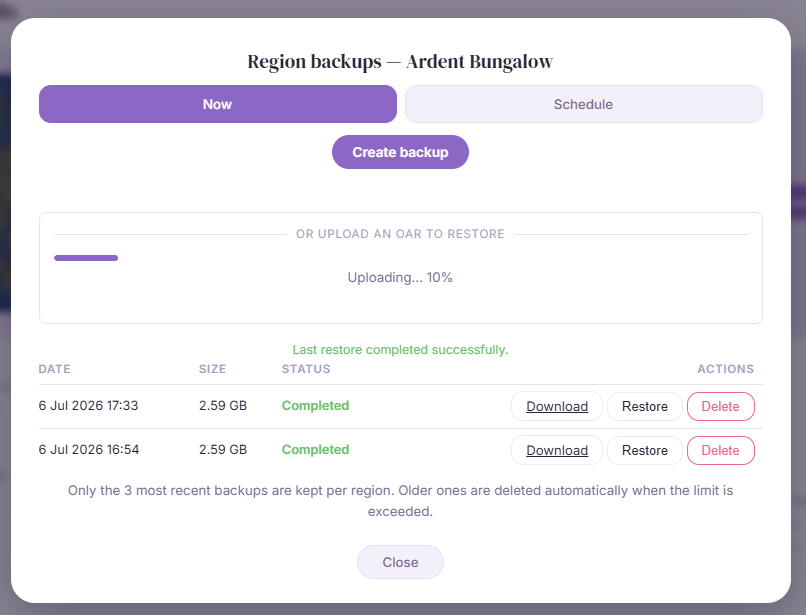
You can also use the “Choose an oar file” to browse for an OAR file to upload and you will see the progress bar while this uploads, and processes.
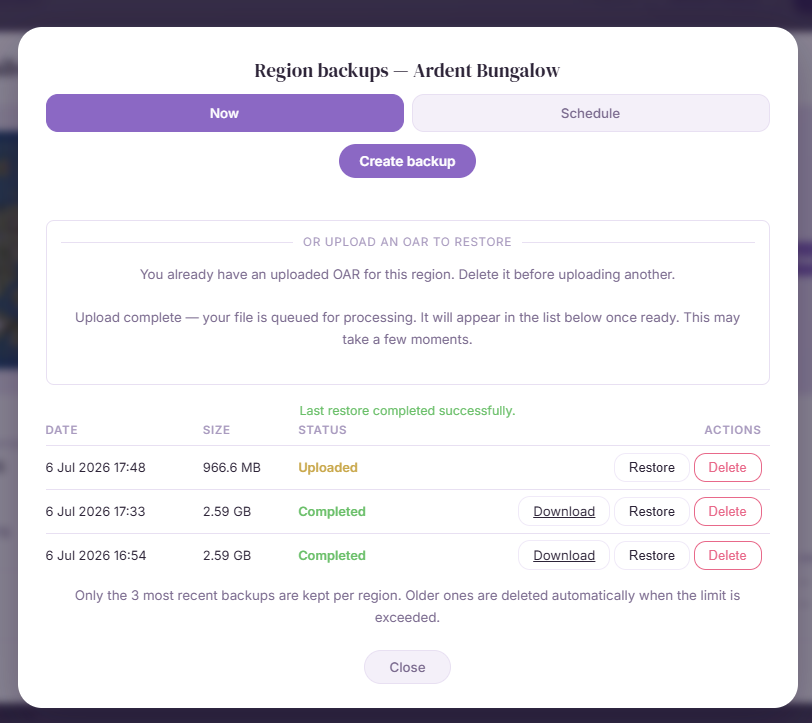
Only ONE uploaded OAR file is supported at a time. Once you have uploaded one you will see it listed along with any other backups (showing as Uploaded instead of Completed). You will also see a “blocker” in the middle – it will not allow you to upload another OAR until you have deleted the existing one. Please note this image was taken as a grid staff user so you will see “Restore” not “Request Restore”.
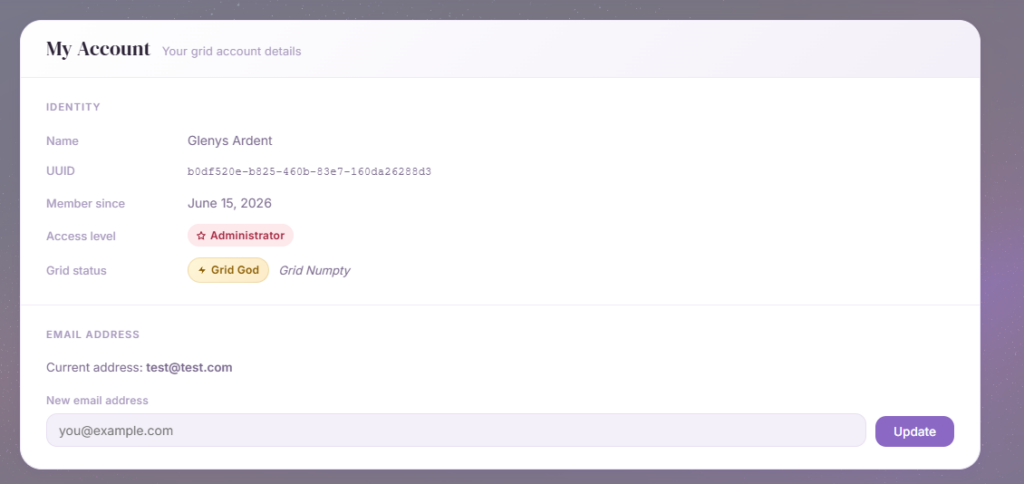
You can use the account menu option to see your account status. Access level and Grid Status will only appear if you are “Trusted User” level or above. You can change your email address with this option. If your grid administrator has configured email you will need to approve the request on the new email address before it is changed. If your grid administrator has not configured email then no checks are made when changing your email address (but then again you wont need an email address!)
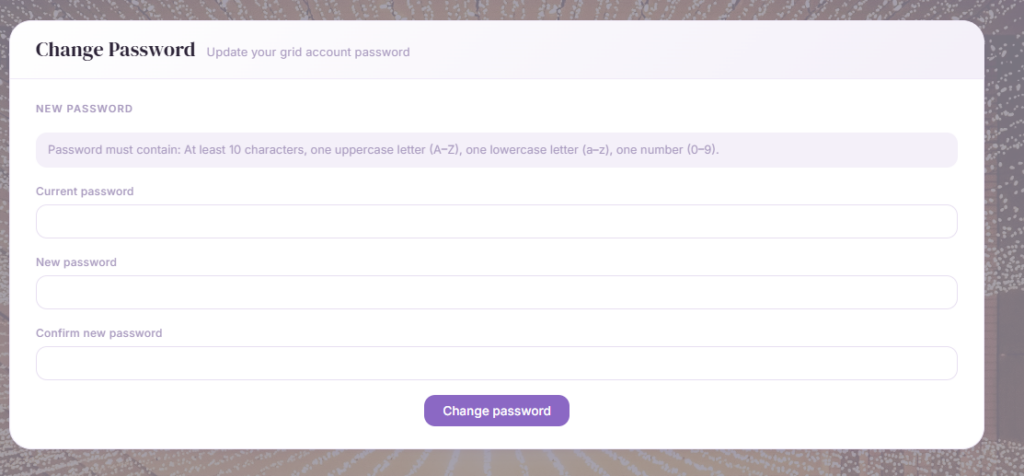
You can also change your password.