
Chapter 4: Wear Scope and Method
Every outfit in Ensemble has two settings that control exactly how it is worn: Scope and Method. Together they determine which items are attached and what happens to anything you are already wearing. These settings are found in the wear options bar at the top of the Outfit Properties modal.
This chapter explains what each setting does, how the four combinations differ, and how to choose the right one for your outfit.
4.1 The Two Settings
Scope and Method are independent of each other. You choose one value for each, giving four possible combinations.
Scope answers the question: which items should be worn?
- This folder only — Ensemble tells RLV to attach the items that are directly inside the named outfit folder. Items in any subfolders are ignored.
- Folder & subfolders — Ensemble tells RLV to attach the items in the named folder and recursively all items in any subfolders inside it. This is the default for new outfits.
Method answers the question: what should happen to items that are already worn?
- Add — the outfit’s items are attached on top of whatever you are already wearing. Nothing is removed first.
- Replace — before attaching the new items, RLV removes any items currently occupying the same attachment points. This is the default for new outfits.
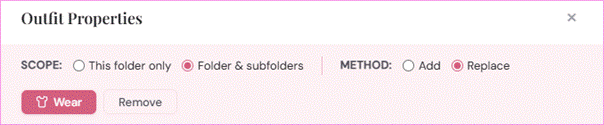
The wear options bar in the Outfit Properties modal, with Scope (This folder only / Folder & subfolders) and Method (Add / Replace) radio buttons visible
4.2 The Four Combinations
The table below summarises the four combinations, the underlying RLV command each one uses, and when to choose it.
| This folder only + Add | This folder only + Replace | Folder & subfolders + Add | Folder & subfolders + Replace | |
| RLV command | @attachover | @attach | @attachallover | @attachall |
| Wears subfolders? | No | No | Yes | Yes |
| Clears existing items first? | No | Yes | No | Yes |
| Best for | Adding accessories over existing outfit | Simple outfits; single outfit folder | Layered outfits with subfolders; additive | Complete outfit change; most common choice |
The rest of this chapter explains each combination in detail with practical examples.
4.3 This Folder Only — Replace
This is the simplest combination and the most common choice for straightforward outfits. Ensemble issues the RLV command @attach, which attaches everything directly inside the named folder and replaces any items at those attachment points that are already worn.
Use this when:
- All items in the outfit are in a single folder with no subfolders.
- You want a clean swap — the old outfit comes off and the new one goes on.
- Your outfit folder structure is flat.
Example: Your #RLV folder contains .ensemble/SummerDress. The folder contains a mesh dress, shoes, and a necklace, all placed directly in the folder — no subfolders. Wearing with “This folder only + Replace” attaches all three items and removes anything previously worn at the same points.
Note: RLV’s @attach command does not recurse into subfolders. If your outfit folder has subfolders and you use “This folder only”, the subfolder contents will be silently ignored. If items are not appearing when you wear an outfit, check whether they are in a subfolder and switch scope to “Folder & subfolders” if so.
Note: RLV’s replace options will only replace the item on the same attachment point. It will NOT remove all traces of an existing outfit. It is also worth noting that if you have items in your outfit that all attach to the same attachment point – only one of them will end up being worn if you use “Replace”. If this happens you will need to switch to “Add” or change where the items are attached.
4.4 This Folder Only — Add
This combination uses the RLV command @attachover, which attaches items from the top-level folder additively — without removing anything first.
Use this when:
- You want to add accessories, jewellery, or a layer on top of an outfit you are already wearing.
- You specifically do not want to disturb existing worn items at the same attachment points (note: if something is already at a point RLV may stack or replace depending on your viewer’s behaviour).
- The items to add are all in a single folder with no subfolders.
Example: You are wearing a complete outfit. You have a folder .ensemble/Accessories/Earrings containing just a pair of earrings. Wearing that folder with “This folder only + Add” attaches the earrings without touching anything else you are wearing.
4.5 Folder & Subfolders — Replace
This is the default setting for new outfits. Ensemble issues @attachall, which recursively wears everything in the named folder and all its subfolders, replacing existing items at those attachment points first.
Use this when:
- Your outfit is organised into subfolders — for example a top-level outfit folder containing separate subfolders for body, clothing, shoes, and hair.
- You want a complete outfit change where the old items are cleared (please see note above about replacing items).
- You are unsure which setting to use — this is the safe default for most situations.
Example: Your outfit folder .ensemble/FormalGown contains subfolders: Body, Dress, Shoes, Hair. Wearing with “Folder & subfolders + Replace” attaches everything in all four subfolders, replacing existing attachments. This is equivalent to wearing the whole outfit at once.
Subfolder depth
The @attachall command is fully recursive — it will descend into subfolders of subfolders to any depth. There is no practical limit on nesting depth, though very deeply nested structures may be slower to wear.
4.6 Folder & Subfolders — Add
This combination uses @attachallover, which recursively wears all items in the folder and its subfolders without removing anything first.
Use this when:
- You want to layer a complex, multi-folder outfit additively on top of what you are wearing.
- You are building a composed look incrementally — for example, wearing a base body first and then layering clothing on top.
Example: Your outfit folder .ensemble/WinterCoat contains subfolders Coat and Scarf. Wearing with “Folder & subfolders + Add” attaches the coat and scarf without removing any of your existing worn items.
4.7 How Remove Works
When you click the Remove button for an outfit in the web panel, Ensemble sends a remove command to the HUD. The remove command is also determined by the outfit’s scope setting:
- This folder only — Ensemble uses @detach, which removes items that are in the named folder directly.
- Folder & subfolders — Ensemble uses @detachall, which removes items from the named folder and all its subfolders recursively.
The Method setting (Add vs Replace) does not affect the remove command — removal always tries to clear the full scope of items that were worn.
Note: RLV remove commands remove items by folder, not by attachment point. If an item was moved out of the outfit folder in your inventory after being worn, the remove command may not find it. Likewise, items worn by other means (manually from inventory, or by a different RLV source) are not affected by Ensemble’s remove command.
4.8 Changing Scope and Method
Scope and Method can be changed at any time in the Outfit Properties modal. Open the modal, adjust the radio buttons in the wear options bar, and click Save. The new settings will be used the next time Wear or Remove is clicked for that outfit.
You can also change the settings and click Wear directly from within the modal without closing it first — the current radio button selections are used immediately.
Tip: If you find an outfit is not wearing correctly — items are missing, wrong items are appearing, or nothing happens at all — the Scope setting is the first thing to check. A common cause is items being in subfolders when “This folder only” is selected, or items having spaces in folder names (see below).
4.9 Folder Names and Spaces
RLV matches outfit folders by their exact name. If a folder name contains spaces, some RLV implementations will match only on the first word — for example, a folder called Pink Dress may be matched as Pink, causing the wrong folder to be worn or nothing to be worn at all.
To avoid this, the recommended convention is to use underscores instead of spaces in all RLV outfit folder names:
Pink_Dress ✓ safe Pink Dress ✗ may cause issues
Ensemble will warn you on the outfit card if it detects that a folder path contains spaces. The warning reads: “⚠ Folder name contains spaces — rename in your viewer to avoid RLV matching the wrong folder.”
If you see this warning, rename the inventory folder in your viewer (replacing spaces with underscores), then update the path in Outfit Properties to match.
4.10 Choosing the Right Combination
If you are unsure which combination to use, the following questions will guide you:
Are all your items in a single flat folder with no subfolders?
- Yes → use “This folder only” for scope.
- No, items are in subfolders → use “Folder & subfolders”.
Do you want to replace what you are already wearing, or add on top?
- Replace (the most common case, e.g. changing outfit) → use “Replace”.
- Add without removing existing worn items → use “Add”.
For most users, most of the time, the default of “Folder & subfolders + Replace” is the right choice. It handles both flat and nested folder structures, and it gives the clean outfit-change behaviour that most wardrobe use cases call for.
The next chapter covers Base Outfits, Additional Items, and Wear After Remove — features that let you chain multiple outfits together into sequences that use these scope and method settings at each step.