
SVPortal New Setup Settings
Overview
As SVPortal is a fairly complex system – several people have found it hard to configure and I totally agree there is a lot to configure and not clear at what point you can actaully start using it – and see if you have configured it correctly.
Due to this I am making a substantive change to how the system is configured. A few things – such as the base URL, and the database connections are still stored in the config.php, but everything else is moving to a web based setup.
Currently pre-requisites are expected to be in place before starting too – but I may have the system check these on initial load and if missing – stop the portal with a message to check pre-requisites rather than just give a 500 error. Obviously SOME pre-requisites will HAVE to be sorted before even that can happen (webserver configuration, php access etc) as without those the website cant even start and look what pre-requisites are needed.
Walkthrough
This is designed to give an overview of the whole setup system – but it wont be going into every setting. There is documentation for that (start with QuickStart.md).
The first change you may see is that the portal gives a little more help. If you havent done anything to configure the portal yet, instead of just getting a 500 server error, it displays a warning directing you to the logs so you can see what you havent done yet.
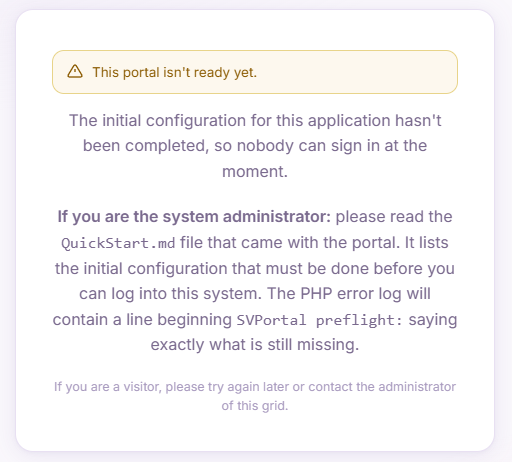
This warning box wont say what is wrong – and several items will cause this: no config.php file, no complete database configuration in config.php or no required database tables/grants.
For security the actual error isnt displayed her but can be found in the logs. for example see the log extract below:

You can see above that the error is config.php not found. It even says to copy config-sample.php to config.php. The full documentation also says to do this so in theory – this wont be often seen for this reason. However it is easy to miss this step and a simple 500 error with nothing else wasnt useful.
Once the config.php exists, the database settings correct and grants for the critical tables, refresh your browser and you will see the login screen.
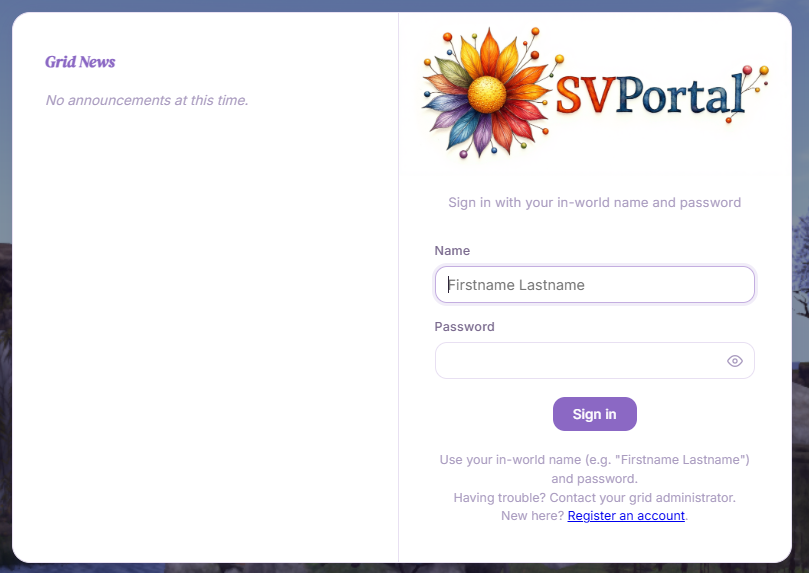
You should be able to log into the portal now with any of your grid accounts, but to do the rest of the setup you will need to log in with a user that has a user level of 250 (the portal considers 250 to be portal administration).
Once you log in you will see your profile. If you havent already configured the portal – in particular the asset server – you will not see any of your “in-world” images for your profile pic – or profile picks.
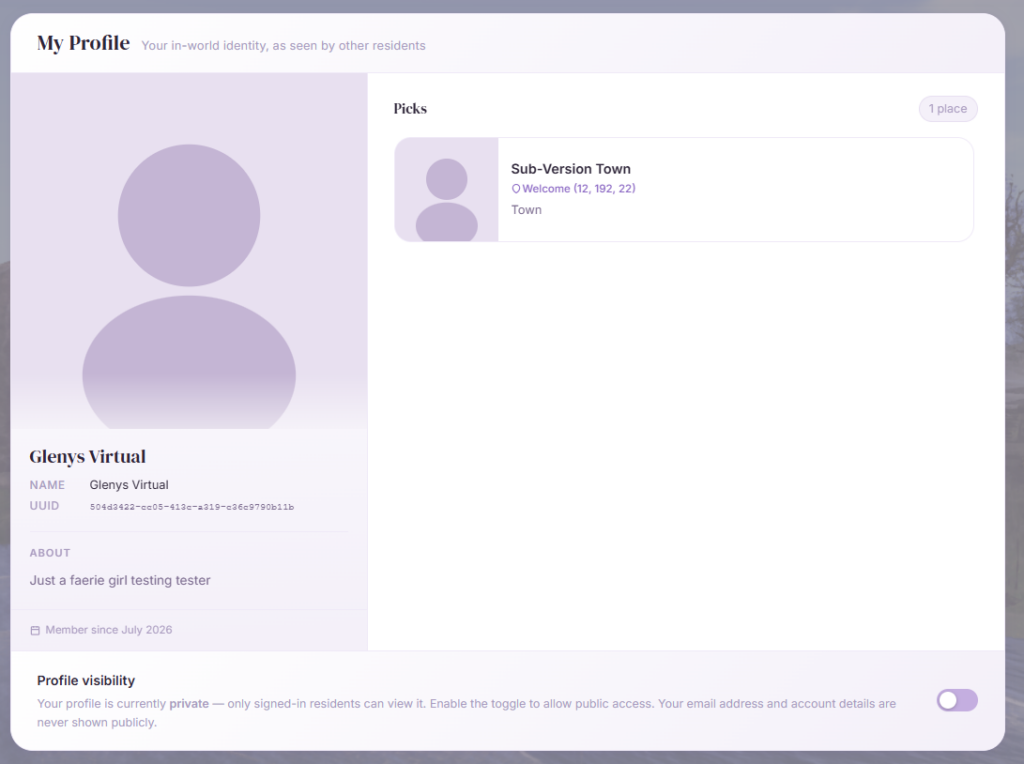
This is totally normal. This means you are connected to the database so can log in and see profile data as this is all read directly from the database. Your Robust settings are not yet configured in the portal so it cannot access any images or other data yet.
From the hamburger menu, open the Administration menu and select Setup.
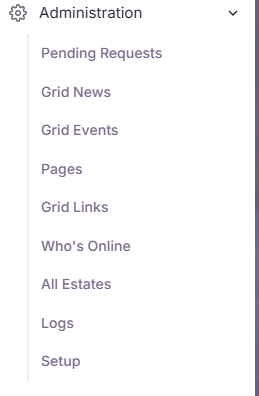
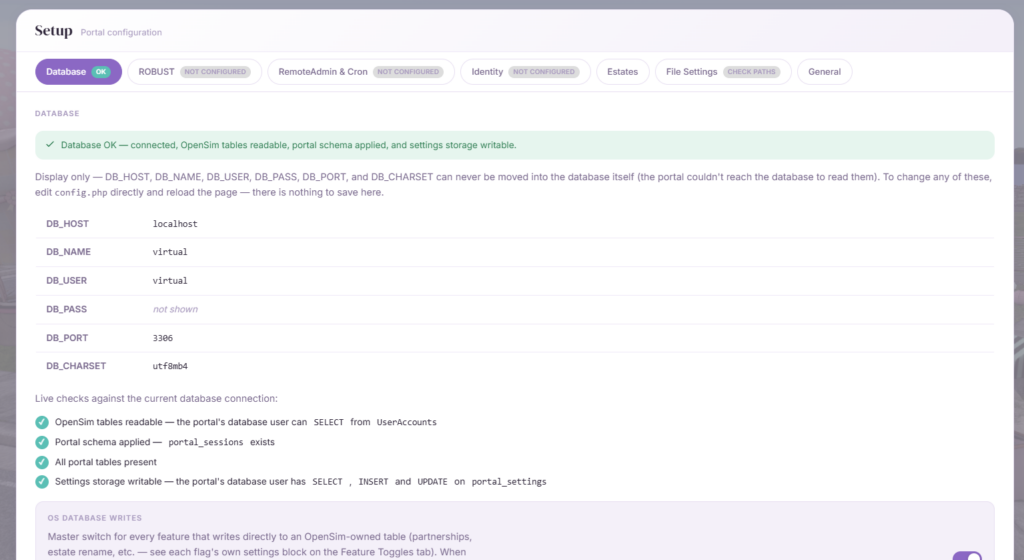
You can see that database setup is complete. There is an “OK” in the tab for Database – and the database setup is being read from config.php and applied. There are a few other checks – that should have green checks against to show that the database section is working as expected.
This was configured all via the few remaining things in config.php. Everything else in the portal itself can be configured in menus and forms – no need to edit text files.