
SVPortal Installation: Initial Install
Overview
This section will guide you through downloading, unpacking, initial configuration, web-server configuration, and first login to the portal. At this stage only basic features will be available for use but at the end of this page you should be able to log in and see your profile (including your profile pic and profile picks), view your friends list, and their profiles. Most other features will NOT work yet so do not be surprised or disappointed when other functions don’t work. Congratulations on getting the SVPortal up and running for the first time.
Download and Install
Check on https://www.glenysbieler.com/svportal/ for the most recent download – this will always be your best option. As SVPortal is distributed under the Apache 2.0 licence it is allowed for someone else to make changes and distribute this software. If they make changes then under the terms of the licence they should make that clear – but its always possible someone will not. It is up to you where you download the software from, and someone elses modification of the software MAY improve it. However, if you want to get the official version of SVPortal then that will ALWAYS be from my website at the address above. Anywhere else – may be modified. It could be better, it could be worse, it could be malicious.
The first thing to do is to take the SVPortal archive (downloaded from above) and extract it onto your system with
tar -zxvf SVPortal-v1.1.tgzThis will create a new folder SVPortal-v1.1 (the names of the archive and of the folder will change depending on the version you download).
Once extracted you should move the folder to where you normally have your websites on your server and copy the config-sample.php file to config.php. For example:
sudo mv SVPortal-v1.1 /var/www/SVPortal
sudo cp /var/www/SVPortal/public/config-sample.php /var/www/SVPortal/public/config.php
The next thing is to make the INITIAL changes to the config.php – enough so you can log into the portal (although most features will still not work at this state). To do this edit the config.php file with your favorite editor and change the following constants:
PORTAL_BASE_URL— the web URL the portal will be served from (for example ‘https://portal.yourdomain.com’). Please note this HAS to be a https address. A http address will not work and you will never be able to log in.GRID_NAME, GRID_SUBTITLE — cosmetic onlyROBUST_PUBLIC_HOST— your grid’s public hostname (e.g.grid.example.com)ROBUST_PUBLIC_PORT— ROBUST’s public/viewer-login port (default8002)- GRID_DISPLAY_NAME — cosmetic only
ROBUST_HOST— hostname/IP of your ROBUST service (oftenlocalhost. This means SVPortal can talk to your robust server internally and meaning you do not need to have the private port accessible externally (you should not!)ROBUST_PRIVATE_PORT— ROBUST’s private port (default8003)- DB_HOST, DB_PORT, DB_NAME, DB_USER, DB_PASS, DB_CHARSET — your database connection details for MariaDB. Please note that the DB_CHARSET should be ‘utf8mb4’ – any other value may cause issues. Please ensure your MariaDB (or MySQL) database is set to use uft8mb4 character set and utf8mb4_unicode_ci collation.
You should secure your config.php file as it contains database and robust credentials etc:
sudo chmod 640 config.php
sudo chown root:www-data config.php
Nginx Configuration (scroll down for Apache2)
You should also ensure that there is an Nginx block to protect this from download which brings us onto the last phase of the initial installation, your Nginx config.
Create a new config for your portal installation. Depending on how your Nginx is configured – you may need to make a new config in /etc/nginx/sites-available and then link it to /etc/nginx/sites-enabled or some other mechanism. Follow what you normally do for your Nginx configs (If you are using Apache – scroll down)
This is a recommended config for Nginx – please make changes for your own setup (location, certs etc)
server {
    listen 443 ssl;
    http2 on;
    server_name portal.yourdomain.com;
    add_header Strict-Transport-Security "max-age=15552000; includeSubDomains";
    add_header X-Frame-Options "SAMEORIGIN";
    add_header Content-Security-Policy "frame-ancestors 'self';";
    ssl_certificate /location_of_your_tls_certificate.pem;
    ssl_certificate_key /location_of_your_tls_certificate_key.pem;
    ssl_protocols TLSv1.2 TLSv1.3;
    ssl_ciphers HIGH:!aNULL:!MD5;
    ssl_prefer_server_ciphers on;
    ssl_dhparam /location_of_your_dhparams.pem;
        root /var/www/portal.yourdomain.com/public;
    index index.php index.html index.htm
    client_max_body_size 256M;

    location = /favicon.ico {
            log_not_found off;
            access_log off;
    }

    location = /robots.txt {
            allow all;
            log_not_found off;
            access_log off;
    }

    location / {
            try_files $uri $uri/ /index.php?$args;
    }

    # Prevent config.php from being downloaded
    location = /config.php {
        deny all;
        return 404;
    }

    # hide any hidden files
    location ~ /\. {
            deny all;
    }

        # hide any backup or SQL dump files
        location ~ ^.+\.(sql|bak|php~|php#|php.save|php.swp|php.swo)$ {
                return 404;
        }

        location ~* \.(js|css|png|jpg|jpeg|gif|ico)$ {
                  log_not_found off;
        }

        location ~ \.php$ {
                client_max_body_size 256M;
                include snippets/fastcgi-php.conf;
                fastcgi_pass unix:/run/php/php8.4-fpm.sock;
        }

        location = /login.php {
                limit_req zone=login_limit burst=10 nodelay;
                limit_req_status 429;
                client_max_body_size 256M;
                include snippets/fastcgi-php.conf;
                fastcgi_pass unix:/run/php/php8.4-fpm.sock;
        }

        location = /register.php {
                limit_req zone=login_limit burst=10 nodelay;
                limit_req_status 429;
                client_max_body_size 256M;
                include snippets/fastcgi-php.conf;
                fastcgi_pass unix:/run/php/php8.4-fpm.sock;
        }

        # Directives to send expires headers and turn off 404 error logging.
        location ~* ^.+\.(xml|ogg|ogv|svg|svgz|eot|otf|woff|mp4|ttf|css|rss|atom|js|jpg|jpeg|gif|png|ico|zip|tgz|gz|rar|bz2|doc|xls|exe|ppt|tar|mid|midi|wav|bmp|rtf)$ {
                 access_log off; log_not_found off; expires max;
        }

        location ~ /\.ht {
                deny all;
        }
}
Please note in particular any sections in red – as you will need to change those to match your setup.
Apache2 configuration
<VirtualHost *:443>
    ServerName portal.yourdomain.com
    DocumentRoot /var/www/portal.yourdomain.com/public

    Protocols h2 http/1.1

    SSLEngine on
    SSLCertificateFile      /location_of_your_tls_certificate.pem
    SSLCertificateKeyFile   /location_of_your_tls_certificate_key.pem
    SSLOpenSSLConfCmd DHParameters "/location_of_your_dhparams.pem"

    Header always set Strict-Transport-Security "max-age=15552000; includeSubDomains"
    Header always set X-Frame-Options "SAMEORIGIN"
    Header always set Content-Security-Policy "frame-ancestors 'self';"

    LimitRequestBody 268435456

    <Directory /var/www/portal.yourdomain.com/public>
        DirectoryIndex index.php index.html index.htm
        Options -Indexes
        AllowOverride None
        Require all granted

        RewriteEngine On
        RewriteCond %{REQUEST_FILENAME} !-f
        RewriteCond %{REQUEST_FILENAME} !-d
        RewriteRule ^ index.php [L,QSA]
    </Directory>

    # PHP-FPM via unix socket (php8.4-fpm)
    <FilesMatch "\.php$">
        SetHandler "proxy:unix:/run/php/php8.4-fpm.sock|fcgi://localhost"
    </FilesMatch>

    # login.php / register.php — rate limiting was commented out in the
    # nginx source config, so there's nothing extra to enforce here yet.
    # Apache has no built-in equivalent of nginx's limit_req; when you're
    # ready to enable it, mod_evasive or fail2ban (watching the access
    # log for repeated POSTs to these paths) are the usual routes —
    # neither is a drop-in translation, so I've left this as a plain
    # PHP-FPM pass-through for now, same as every other .php file.

    # Hide dotfiles (.env, .git, etc.)
    <FilesMatch "^\.">
        Require all denied
    </FilesMatch>

    # Hide backup / SQL dump files
    <FilesMatch "\.(sql|bak|php~|php#|php\.save|php\.swp|php\.swo)$">
        Require all denied
    </FilesMatch>

    # Static asset caching
    <FilesMatch "\.(xml|ogg|ogv|svg|svgz|eot|otf|woff|mp4|ttf|css|rss|atom|js|jpg|jpeg|gif|png|ico|zip|tgz|gz|rar|bz2|doc|xls|exe|ppt|tar|mid|midi|wav|bmp|rtf)$">
        ExpiresActive On
        ExpiresDefault "access plus 10 years"
    </FilesMatch>

    # Deny .ht* files (belt-and-braces alongside the dotfile rule above)
    <FilesMatch "^\.ht">
        Require all denied
    </FilesMatch>

    ErrorLog  ${APACHE_LOG_DIR}/portal.yourdomain.com.log
    CustomLog ${APACHE_LOG_DIR}/portal.yourdomain.com-access.log combined
</VirtualHost>
Testing it out
You should now have your portal set up to connect to your grid and also your database, and configured to be served by your webserver. Please note that I do not usually use Apache, so while the Apache configuration SHOULD work I cannot provide support for it. I am more familiar with Nginx so can help track issues a little easier there (but please note that support is not guaranteed although I will do my best to help).
With your configuration completed of your webserver, test the config and then restart your webserver to make it available.
Once restarted visit https://portal.yourdomain.com on a browser and hopefully you will see a login box similar to the one below:
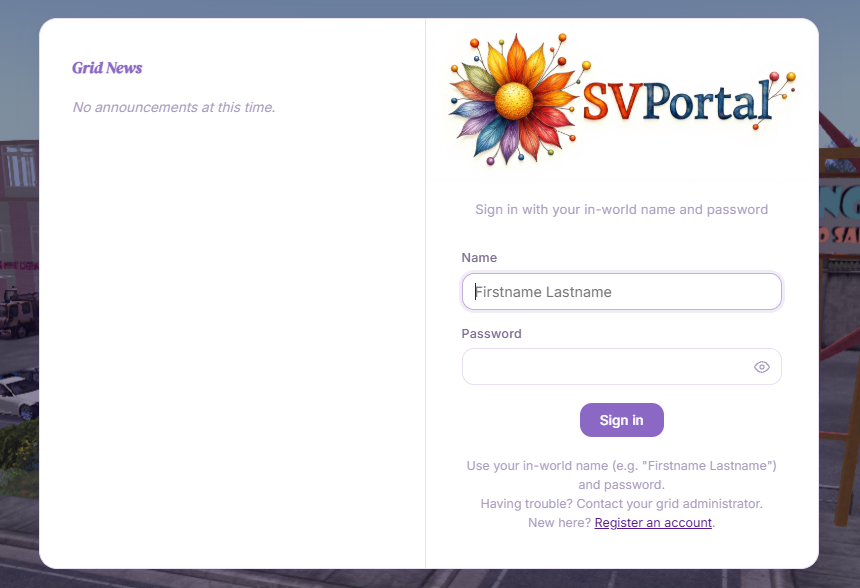
You should be able to login now with a grid account from your grid. Later to test more features you will need to log in with a grid account with a user level that represents an “Administrator” on the portal – but that will be a future configuration.