
SVPortal New Setup Settings
Overview
As SVPortal is a fairly complex system – several people have found it hard to configure and I totally agree there is a lot to configure and not clear at what point you can actaully start using it – and see if you have configured it correctly.
Due to this I am making a substantive change to how the system is configured. A few things – such as the base URL, and the database connections are still stored in the config.php, but everything else is moving to a web based setup.
Currently pre-requisites are expected to be in place before starting too – but I may have the system check these on initial load and if missing – stop the portal with a message to check pre-requisites rather than just give a 500 error. Obviously SOME pre-requisites will HAVE to be sorted before even that can happen (webserver configuration, php access etc) as without those the website cant even start and look what pre-requisites are needed.
Changes
Previously it was not clear what was needed to be configured to get the portal up and running – so it could be logged into, and what was needed for each option.
With the advent of the new setup tool, you still need to configure the database and one or two other items in the config.php file – and you CAN still configure everything there (initially).
However when you access each section in the setup screen it looks to see if the setup registry has the setup in the database, and if not it looks at the config.php and copies over whatever is there. In many cases this will be just placeholders. There may be nothing – in which case it will use defaults. This means that an existing install will copy over the settings configured into the registry to make upgrading to this version seamless.
With the basic database settings configured and the portal served from the webserver and pre-requisites configured – you can log into the portal without setting up anything else.
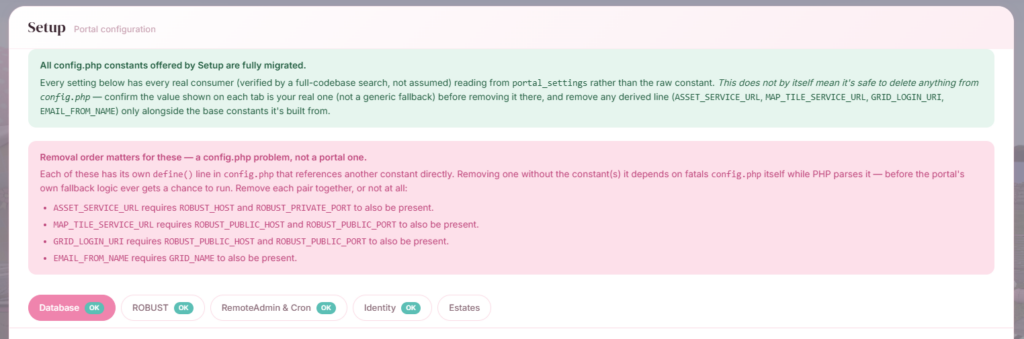
With just the database configured you can log in – view your profile and regions, friends lists etc. However you will have placeholder images as the asset server is not active. The next stage is to configure the ROBUST settings in the portal, which will get assets and some other things working, then the next is RemoteAdmin and Cron, Identity, Estates, and General.
Each step of configuration will unlock more features of the portal. You can work on these in descrete steps rather than having to get it all setup at once.
Here is an initial view of the tabs in this setup. Some of the text here (the red warning) will be going once finished.
Help as you go
While the portal has always been shipped with an Install.md file (and will continue to be) – a huge Install file to go with a huge config.php file is not that user friendly
There are two main goals with this new system:
- Remove the need for a huge file that does little to reward work by providing something concrete until ALL configuration has been done by splitting this into descrete sections
- Provide help and guidance where needed at the right point. Instead of a whole document about what do do throughout all of it – help for what to do “at the section you are currently” looking at – context sensitive help – should make this far less of a chore to work through.
Ultimately, SVPortal is not “designed” as an “end user” install, but a grid administrator install and a certain level of “System Admin experience” is anticipated. However, that doesn’t mean we can’t make it easier to do.
As an indication of what I mean here is a section that has not been configured yet, and the guidance it gives the administrator about what they need to do for this to work:

Here we can see that the needed grants needed on the OpenSim estate_managers table have not been granted – and so this option will not work correctly. It identifies it with a “GRANTS NEEDED”. The “Show more information” at the bottom allows you to drop that down and see what is needed to fix this issue.
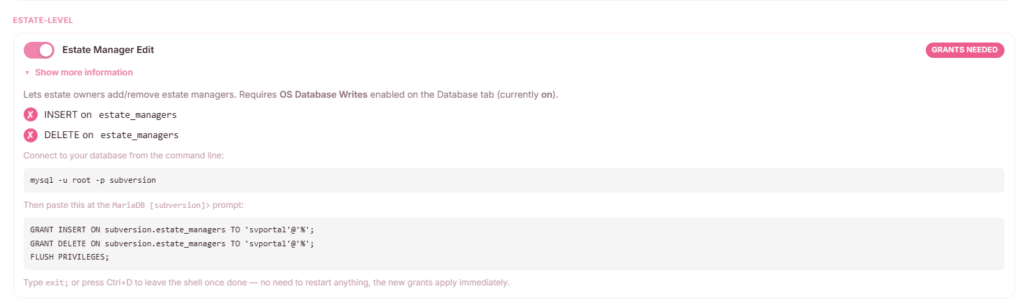
Now we can see the actual commands needed to fix this issue. Note it’s even got the database name and username speficied as it takes this from the database connection used for the portal so it can provide “copy and paste” commands here.
Once done, reloading the page will show that the grants are now ok

The guidance to fixing the issue is only shown when there actually IS an issue. Now it’s been fixed we just see that the grants are ok and the drop down information for “Show more information” just shows what this setting is for and checkmarks against everything needed.
This is of course just one example – but the design philisophy here is to make it step by step – guidance along the way as we go. I am sure improvements will be made over time to it, and it’s not actually available yet (but very soon).
Installation
Once this is finished it will be uploaded here to my website – as SVPortal v1.2. I am not planning any new features for the next few weeks (there are more coming but I need a break) but with a few people saying that they have had problems getting the portal working – I have put the effort in to hopefully make it a little less of a marathon to complete.
As soon as this is available for downloading – I will post as usuall on OpenSimWorld and it will be available for download at https://www.glenysbieler.com/svportal/.